Colima Disk Cleanup on Mac
Last updated: 2026-06-05
Quick answer
Colima creates Lima VMs under ~/.colima and ~/.lima — each profile has its own VM disk image. Run colima list and du -sh on those paths. Prune Docker inside Colima with docker system prune -a. CodeCleaner detects Colima and Lima VM footprint.
Native macOS app. No account required. Local scan. You review before cleanup.
Colima runs Docker inside Lima virtual machines. Each Colima profile gets its own VM with a disk image that can reach 5–20 GB or more. Combined with Docker images inside the VM, Colima users often see significant hidden disk use.
How Colima uses disk space
Colima stores VM data under ~/.colima. Lima (the underlying VM manager) uses ~/.lima. Each profile's VM disk image grows with Docker images, volumes, and build cache inside that VM.
List Colima profiles and check sizes
colima list shows active profiles. du -sh ~/.colima ~/.lima reveals host-side VM footprint. Docker usage inside Colima follows the same prune patterns as Docker Desktop.
Prune Docker inside Colima
With Colima running, use docker system df and docker system prune -a inside the Colima context. This removes unused images and containers within the VM.
Deleting Colima VMs — caution
colima delete removes a profile and its VM. Only delete profiles you no longer need — this is destructive. Back up important container data first.
How CodeCleaner detects Colima
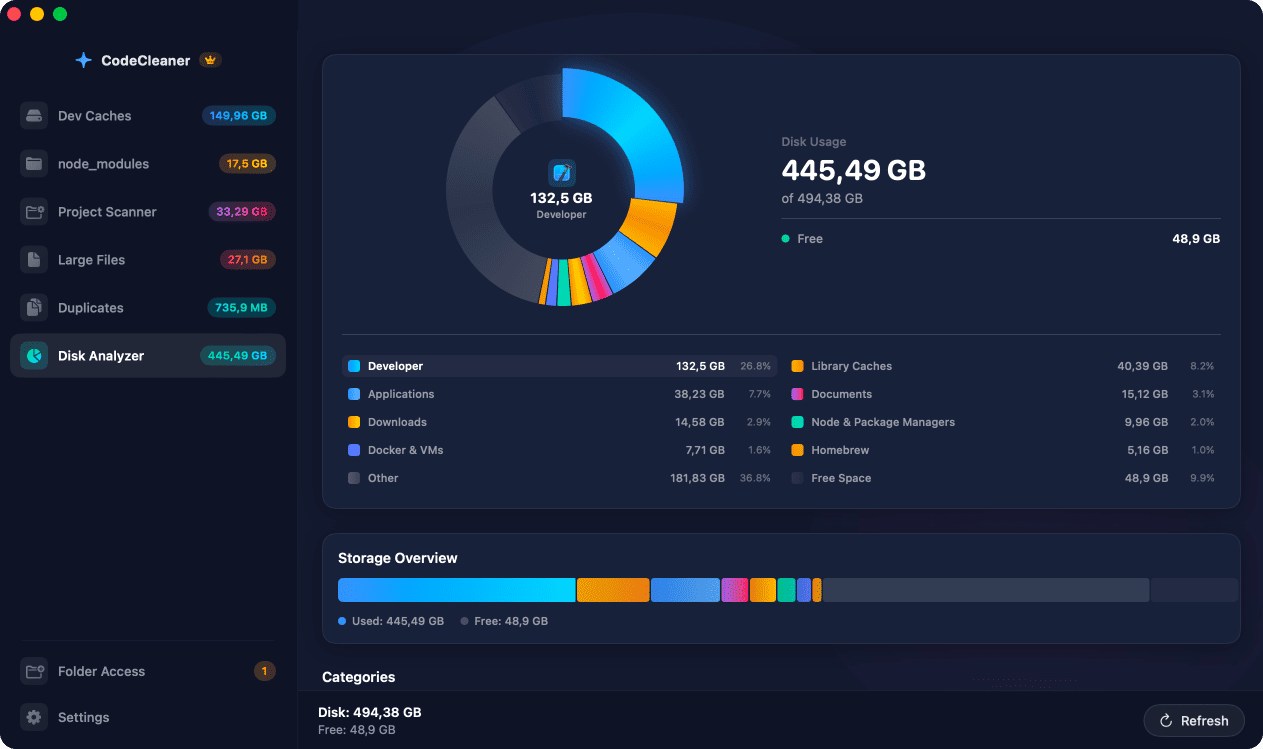
CodeCleaner detects Colima installations and measures Lima VM disk footprint alongside Docker resource usage. Scan first, review before deleting.
Manual steps (Terminal)
Run these commands in Terminal first. Scan first, review before deleting — or use CodeCleaner for a visual interface with per-item size breakdowns.
List Colima profiles
colima listCheck Colima/Lima disk usage
du -sh ~/.colima ~/.limaDocker usage inside Colima
docker system dfPrune unused Docker resources
docker system prune -aSafety warnings
- colima delete permanently removes a profile and its VM — confirm you no longer need it.
Or use CodeCleaner
CodeCleaner automates this with a native macOS app. Scan first, review before deleting. Free scan, no account required.
Native macOS app. No account required. Local scan. You review before cleanup.
Frequently asked questions
- Why is Colima taking so much space?
- Each Colima profile runs a Lima VM with its own disk image plus Docker images and volumes inside.
Why developers trust CodeCleaner
- Source code is never targeted
- Only known cache and build artifact paths
- Docker cleanup through official Docker CLI
- Local-only processing — no cloud upload
- No account required
- Free scan before paying for cleanup
Native macOS app. No account required. Local scan. You review before cleanup.